How to Connect Claude Code to Jev AI in 2026 via Composio MCP
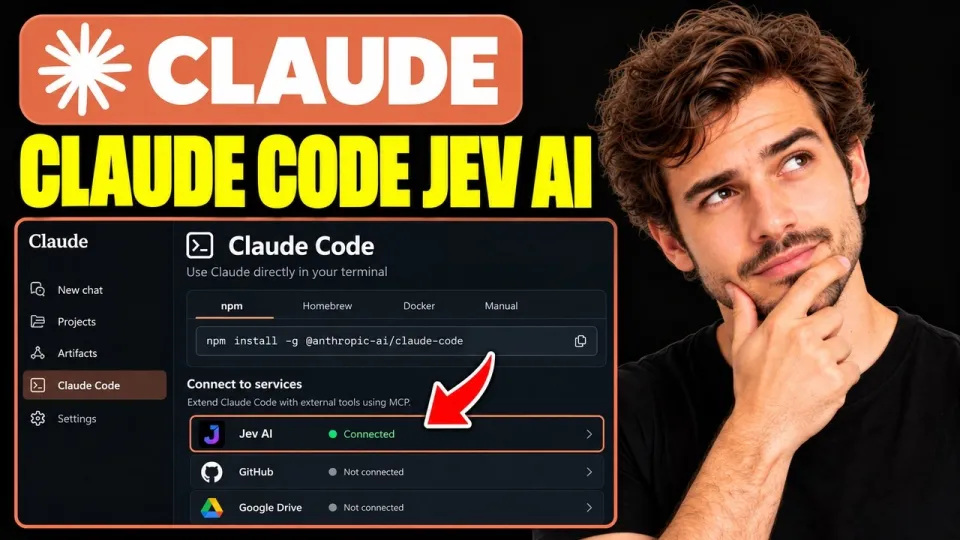
Video: How to Connect Claude Code to Jev AI (Step-by-Step Setup)
· based on the channel Tech Help Daily
Key takeaways
- The bridge between Claude Code and Jev AI is Composio, which exposes Jev as an MCP server that Claude Code can call.
- You need Claude Code, Node.js, a free Composio account, and access to Jev before starting.
- The Composio API key and a user ID go in a .env file that must never be committed to a public repository.
- The MCP address is registered with the claude mcp add command, then Claude Code is restarted and checked with claude mcp list.
- Each Jev evaluation consumes inference credits, so usage should be monitored after setup.
You connect Claude Code to Jev AI by registering Jev as an MCP server through Composio: create a Composio session for the Jev toolkit, copy the MCP address it prints, add it with `claude mcp add`, restart Claude Code and confirm with `claude mcp list`. The whole setup takes a few minutes and needs no custom code, only an API key, a `.env` file and the command Composio generates for you.
What you need before connecting Claude Code to Jev AI
Jev scores and classifies data against questions you define, and it does not ship a native Claude Code integration. Composio acts as the bridge: it wraps Jev as an MCP (Model Context Protocol) server that Claude Code can discover and call like any other tool. Before you start, have four things ready:
- Claude Code installed and working in a terminal — run `claude --version` to confirm it responds.
- Node.js installed, since the Composio tooling and the MCP server both run on it.
- A free Composio account, which is where the API key and the session live.
- Access to Jev, meaning an account or credentials on the Jev side that the toolkit can use.
If any of these is missing, fix it first — the connection step will fail silently otherwise, and you will end up debugging the wrong layer.
Step 1: Create the Composio account and store the API key safely
Sign in to Composio or create a free account, then open the dashboard and copy your API key. Back in your project folder, create a `.env` file and add the key there together with a user ID of your choice (any stable string that identifies you or your workspace):
```
COMPOSIO_API_KEY=your_key_here
COMPOSIO_USER_ID=your_user_id
```
The habit that matters here: never commit `.env` to a public repository. Add it to `.gitignore` before the first commit, and if a key ever leaks, rotate it in the Composio dashboard rather than deleting the repo history and hoping. Keys pasted into chat logs, screenshots or shared terminals should be treated as compromised.
Step 2: Create a Composio session with the Jev toolkit
Following Composio's guide, create a session for your user that includes the Jev toolkit. The session is what binds your API key, your user ID and the Jev tool definitions together; the MCP server address is derived from it. Run the snippet Composio provides in its documentation, with your environment variables loaded, and the script prints an MCP address — a URL that points at your session.
Copy that address exactly. It is tied to the session you just created, so if you regenerate the session later, the old address stops working and Claude Code will report the server as unreachable until you update it.
Step 3: Add the MCP address to Claude Code
Register the address with Claude Code's MCP command:
```
claude mcp add jev --url <your_mcp_address>
```
The exact current syntax is shown in Composio's guide — copy it from there rather than from a blog post, because the flags have changed between Claude Code releases. Give the server a short, recognizable name such as `jev`; that name is what you will see in listings and what you reference when troubleshooting.
Step 4: Restart Claude Code and verify the connection
Close the running Claude Code session and start it again so it reloads its MCP configuration, then run:
```
claude mcp list
```
Jev should appear in the output as connected. From that point, Jev's scoring and classification tools are available inside Claude Code sessions — you can ask Claude to run an evaluation against one of your defined questions and it will call the Jev tool through the MCP server.
If the server shows as failed, check three things in order: that the `.env` values are loaded in the shell where Claude Code runs, that the MCP address is the one from your current session, and that Node.js is on the PATH. A stale address is the most common cause.
Usage costs and practical limits
Every evaluation Jev runs consumes inference credits, and Claude Code will happily trigger several in a row if you ask for batch work. Watch your usage in the Composio and Jev dashboards, especially during the first sessions when you are testing prompts. Keep the number of defined questions tight — each one is a scoring dimension, and broad question sets multiply the number of evaluations per run.
For related setups, the same Composio pattern applies to other toolkits, and the Jev connector behaves identically whether you call it from Claude Code or from Claude Desktop — the difference is only where the MCP address is registered.
Summary
Connecting Claude Code to Jev AI comes down to four moves: copy the Composio API key into a `.env` file, create a session with the Jev toolkit, register the printed MCP address with `claude mcp add`, and verify with `claude mcp list` after a restart. The setup needs no custom code, and the only real risk is key hygiene — keep `.env` out of version control. This breakdown follows the walkthrough published by the Tech Help Daily channel, which shows each screen and command in sequence. Once connected, Jev's scoring tools are one prompt away inside Claude Code.
Questions & answers
Do I need a paid Composio plan to connect Claude Code to Jev AI?
No. A free Composio account is enough for the setup described: you create an account, copy the API key and generate a session with the Jev toolkit. Costs come from the Jev side, where each evaluation consumes inference credits.
Where do I find the MCP address for Jev?
The address is printed when you create a Composio session for your user with the Jev toolkit, following Composio's guide. Copy it exactly as shown and pass it to Claude Code with the claude mcp add command — the exact syntax is listed in the guide and changes between releases.
Why does Jev not appear in claude mcp list after setup?
The most common causes are a stale MCP address from an older session, environment variables not loaded in the shell running Claude Code, or Node.js missing from the PATH. Restart Claude Code after editing configuration, then re-run claude mcp list to check.
Can I use the same approach with Claude Desktop instead of Claude Code?
Yes. The Jev connector is exposed as an MCP server, so the same Composio session and MCP address can be registered in Claude Desktop's MCP configuration. Only the place where you register the address differs; the Jev toolkit and its credit usage stay the same.
Source: How to Connect Claude Code to Jev AI (Step-by-Step Setup) · Markdown version